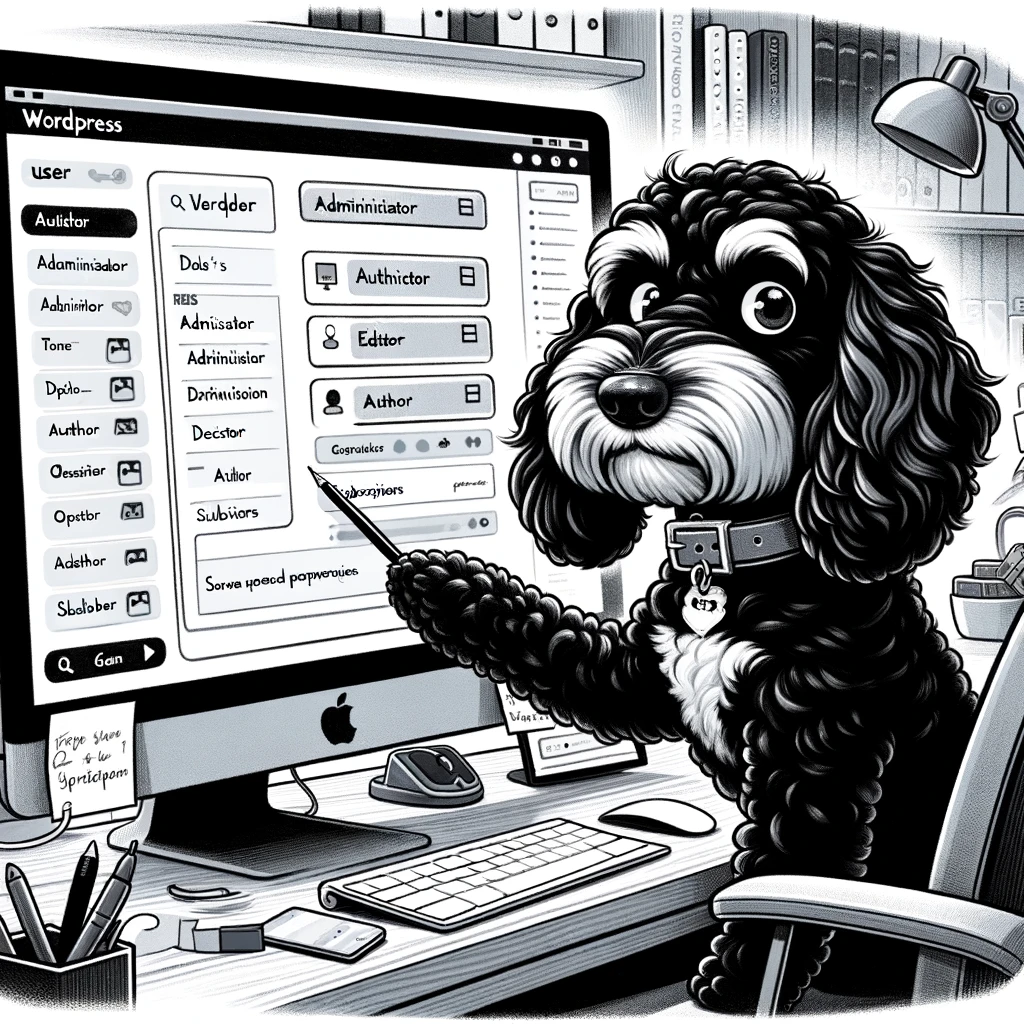
Understanding User Roles in WordPress
User roles in WordPress defines what a user can and cannot do on a website. They are critical for maintaining order, security, and efficiency in website management.
Purpose and Importance of User Roles
User roles in WordPress are designed to allocate specific permissions and capabilities to different users, ensuring secure and structured access to website functions. They are vital in preventing unauthorized content changes or access to sensitive areas of a website. By assigning roles, website administrators can maintain tight control over who can publish, edit, delete, and manage the site.
Default User Roles and Capabilities
WordPress comes with five default user roles, each with a tailored set of capabilities:
- Administrator: Has complete control of the website, can manage and publish content, and can change other users’ roles.
- Editor: Can read, edit, publish, and delete any post or page, including those written by others.
- Author: Can read, edit, and publish their own posts, but cannot modify content created by others.
- Contributor: Allowed to read all content and edit their own unpublished posts but cannot publish.
- Subscriber: Has basic capabilities, typically read access only, for example to leave comments.
Capabilities are specific actions that user roles can perform, such as “edit_posts” or “moderate_comments”, and they precisely define what users of different roles can do on the WordPress site.
WordPress Multisite and Super Admin Role
In a WordPress multisite network, the Super Admin role is introduced, extending beyond the capabilities of an ordinary Administrator. A Super Admin has the ability to manage the network of sites, which includes adding or deleting sites, managing plugins and themes across the network, and altering user roles on any of the subsidiary sites. This role is pivotal in the higher-level administration of a multisite setup.
Modifying and Managing User Roles
When it comes to fine-tuning your WordPress website, managing user roles is vital for security and workflow efficiency. WordPress makes it possible to create custom user roles and adjust capabilities to meet the specific needs of your site.
Creating and Assigning Custom User Roles
To create custom user roles, site administrators often use plugins such as User Role Editor. These plugins provide a user-friendly interface for defining new roles with specific responsibilities. The add_role() function also allows developers to define custom user roles directly in their theme’s functions.php file or a site-specific plugin. A typical multisite installation may require unique roles across the network, and these methods facilitate such customization.
Editing and Removing Roles and Capabilities
In addition to creating custom roles, WordPress enables site managers to edit existing roles by adjusting their capabilities. This is done using methods such as add_cap() to grant additional permissions or remove_cap() to revoke them. Should there be a need to remove a custom user role entirely, remove_role() becomes handy. When managing capabilities, it’s important to understand the implications of each change, as they can greatly impact a user’s ability manage and perform tasks within the site.
Strategies for Secure and Efficient User Management
In WordPress, establishing a secure environment involves meticulous user role assignment and the integration of robust tools for user management. Implementing strategic controls is imperative for maintaining an organized and protected website.
Best Practices for Assigning Roles and Permissions
When it comes to assigning roles and permissions, it’s crucial to plan meticulously. The principle of least privilege should be a cornerstone of any role management strategy, ensuring users are granted only the access necessary to perform their tasks.
- Administrators should be kept to a bare minimum and have complete control.
- Editors manage content and should thus have robust possibilities for content management but no site-wide settings adjustments.
- Authors are allowed to publish and manage their own posts, limiting their access to their content only.
- Contributors can write posts but not publish them, reducing the risk of unauthorized content changes.
- Subscribers are typically only given reading access, presenting the lowest security risk.
When implementing custom roles, it’s essential to utilize precise permissions that align with the user’s responsibilities. When you add a new user, ensure their role fulfills operational needs without compromising security.
Tools and Plugins for Advanced User Management
Leveraging plugins for advanced user management can greatly enhance WordPress’s innate capabilities. These tools provide heightened control and the ability to create custom roles tailored to the unique needs of a WordPress site.
- User Role Editor: A widely used plugin that allows for detailed customization of user roles and capabilities.
- Members: Another plugin that offers fine-grained permission setting and role editing.
Employing these plugins can improve user access regulation and help in assigning special permissions beyond the default settings. In managing user roles, it is essential to keep the user management system up to date to ensure ongoing security and efficiency.