Identifying the Error
When a critical error occurs in WordPress, it typically halts the website’s operations and prompts an immediate need for resolution. The following subsections delve into understanding what this error entails and how to interpret its message.
Understanding WordPress’s Critical Error
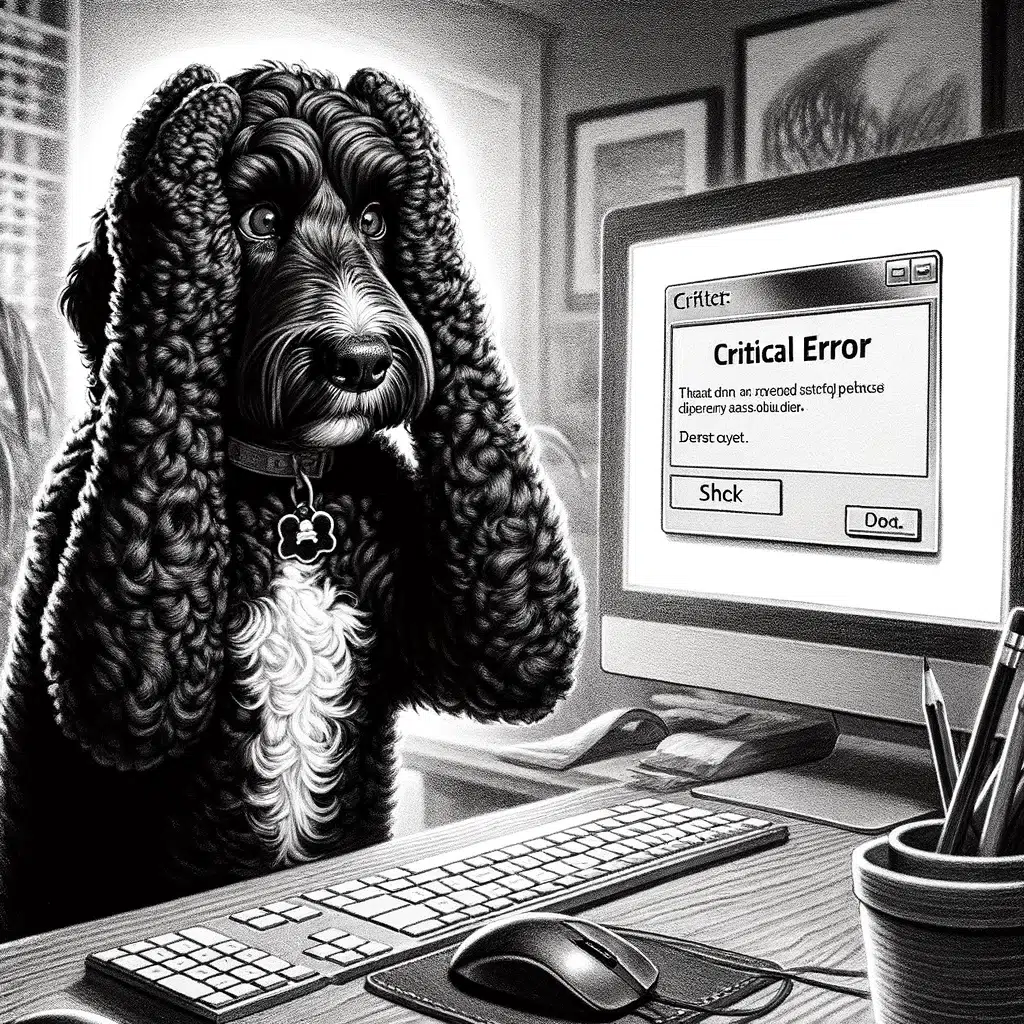
A WordPress critical error typically signifies that something has gone severely wrong with the site, often related to the website’s code or a conflict between plugins or themes. This kind of error is also known as the “white screen of death” because it sometimes results in a plain white screen with no information.
However, recent WordPress versions aim to provide a more helpful error message. It’s crucial for website administrators to recognize that a critical error reflects an underlying issue that requires attention before the site can return to normal functioning.
Interpreting the Error Message
The error message for a WordPress critical error is designed to inform the administrator about the problem without displaying sensitive information to visitors. In many cases, the error will specify whether the issue is with a plugin or theme, or it might indicate a problem with the database connection.
The message may also include details such as a specific file path and line number where the error has occurred. Interpreting the error message accurately is the first step toward troubleshooting and involves matching the details provided with known issues or conducting a web search to find more specific solutions.
Immediate Actions to Resolve the Critical Error
When encountering a critical error in WordPress, it is crucial to act swiftly and methodically to troubleshoot and fix the issue. Employing these immediate strategies can help identify and resolve the problem.
Enabling WordPress Debug Mode
To diagnose the root cause of a critical error, one can enable WordPress Debug Mode. By setting define( 'WP_DEBUG', true ); in the wp-config.php file, WordPress will display PHP errors, notices, and warnings. For more in-depth insights, adding define( 'WP_DEBUG_LOG', true ); will record these details in a debug.log file within the wp-content directory, allowing for a thorough examination.
Assessing Plugin and Theme Conflicts
Often, conflicts between plugins or themes can trigger critical errors. To check for this, deactivate all plugins by renaming the plugins directory or via the database if unable to access the admin area.
If the website normalizes, reactivate plugins one by one to identify the culprit. Similarly, revert to a default WordPress theme to see if the issue resolves, indicating a theme conflict.
Increasing PHP Memory Limit
A common fix for critical errors involves increasing the PHP memory limit. This can be done by editing the wp-config.php file, adding the line define( 'WP_MEMORY_LIMIT', '256M' ); to allocate more memory. One must ensure their hosting service permits this increase as server restrictions may apply.
Advanced Troubleshooting Techniques
When standard fixes don’t resolve the critical error in WordPress, one must resort to more advanced measures. These techniques require a careful approach as they involve core aspects of the website’s infrastructure and data.
Using FTP to Investigate Further
To further troubleshoot the issue, one can use an FTP client to access the WordPress site’s files. By navigating to the wp-content folder, a user may rename the plugins directory to deactivate all plugins, which can often resolve conflicts.
Similarly, they can replace the theme with a default WordPress theme by renaming the theme directory. It’s crucial to check the wp-config.php file for any irregular PHP code that might cause the critical error.
Examining the Error Logs
One can find substantial clues in the error logs. They should look for the error log in the cPanel or use the FTP client to locate it within the site’s directory. It’s possible to enable WP_DEBUG in the wp-config.php file to log all errors, which can then be examined for any recurring patterns or specific PHP errors that point to the source of the problem.
Restoring From Backup
If troubleshooting yields no solution, one must consider restoring the site from a backup. Using the cPanel’s File Manager or an FTP client, they can upload a previously saved version of the site’s files and databases. This method is particularly effective if recent changes caused the critical error. They must ensure that the restore process does not overwrite any recent valuable data.
Safeguarding Your WordPress Site
Safeguarding a WordPress site involves implementing strategies that ensure its integrity, security, and continued performance. From adhering to regular backup schedules to maintaining updates and optimizing for peak performance, these measures protect against data loss and cyber threats.
Implementing Regular Backups
Regular backups are the safety net of any WordPress site. One should schedule automated backups through their hosting provider or by using trusted plugins. It’s important to store backups in multiple locations, such as in the cloud and on an external hard drive.
This redundancy ensures that a recent version of the site can be restored should any issues arise. The wp-config.php file, which includes critical configuration settings, is one of the essential components that must be included in every backup.
Keeping WordPress Updated
Updates are crucial for securing and maintaining a WordPress site. The administrators should consistently apply updates to the WordPress core files, themes, and plugins via the WordPress dashboard.
Each update not only brings new features but also patches security vulnerabilities that have been discovered since the last version. Ignoring updates risks exposing the site to known exploits and can significantly compromise its security.
Optimizing for Security and Performance
To maximize both security and performance, one should implement several best practices. Choosing strong passwords, limiting login attempts, and using security plugins can fortify a site against brute force attacks.
Additionally, for performance gains, one should minimize the use of resource-heavy plugins and themes, and leverage caching mechanisms. It’s also advisable to regularly clean the database to keep the site running smoothly and prevent potential performance lags.
Ensuring these aspects are well-managed will keep the WordPress site secure and functioning efficiently, providing a safe and positive experience for both users and administrators.