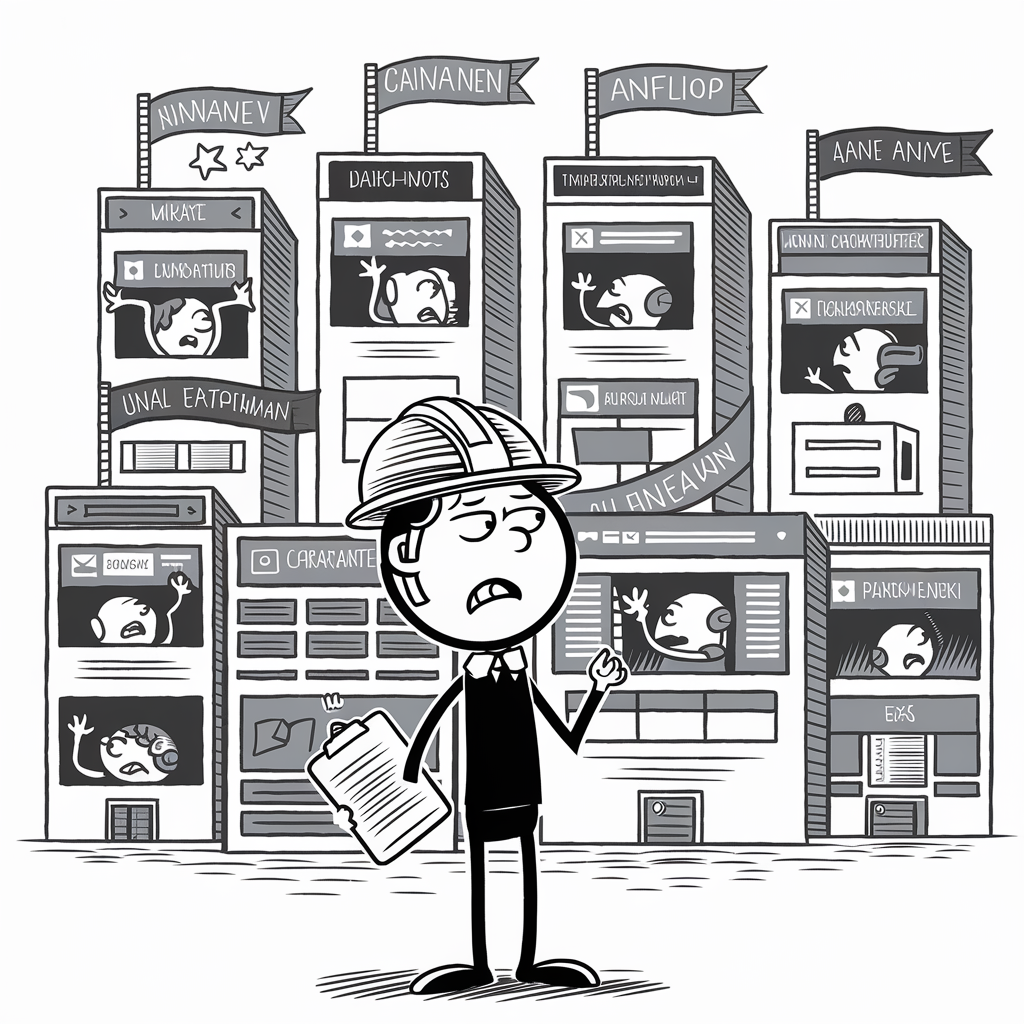
Understanding WordPress Multisite
WordPress Multisite is a capability that enables several websites to operate under a single WordPress installation. This section provides an in-depth look at how WordPress Multisite functions, its advantages and challenges, and the main components that constitute a multisite network.
WordPress Multisite Explained
WordPress Multisite enables the management of a network of websites from one dashboard. Each site within the network is called a subsite, and they all share one set of WordPress core files. This proves particularly efficient for those managing similar sites that can utilize the same themes and plugins.
Benefits and Considerations
The pros of using WordPress Multisite include streamlined updates and uniformity in themes and plugins, leading to efficient management of resources. However, some cons to consider are the complexity of its setup, the need for more advanced hosting, and the potential challenges in managing the performance of the entire network. Multisite is most beneficial in situations where a group of sites has a common purpose but requires individualized content.
Key Components of Multisite
Key features of a WordPress Multisite include the ‘Network Admin‘, which is a dashboard for overseeing the entire network, and the ability for users to establish their own sites within the network as permitted by the super admin. Efficient management of the network is made possible by the shared use of themes and plugins across all subsites, providing a cohesive user experience and ease of administration.
Setting Up Your Multisite Network
Creating a multisite network in WordPress requires a careful approach to enabling and configuring the necessary features. This section will guide you through the key procedures of enabling multisite capabilities, adjusting network settings, and setting up domains or subdomains.
Enabling Multisite in WP-Config
To set up a multisite network, first access the wp-config.php file in the root directory of the WordPress installation. Directly before the line that says /* That's all, stop editing! Happy publishing. */, insert the following line of code:
define(‘WP_ALLOW_MULTISITE’, true);
Once added, this line allows for the Multisite feature to be installed through the WordPress dashboard under the “Network Setup” option.
Configuring Network Settings
After the Multisite feature is enabled and the installation is initiated, WordPress will prompt to configure network settings. These will include specifying the network title and the admin email address. Network settings are critical as they dictate how the sites within the network will operate and how users will interact with them. Here’s a brief checklist for the network settings:
- Network Title: Assign a suitable title that reflects the purpose of your network.
- Admin Email: Provide a valid email that will be used to manage the network administration.
Domains and Subdomains
For a multisite network, one can choose between using subdomains or sub-directories. If electing subdomains, ensure that the wildcards for subdomains are configured correctly on the hosting server. Domain mapping may be used if managing multiple domains. It’s important to work with the hosting provider to set up the DNS records appropriately for each domain or subdomain.
Remember to update the DNS settings for your domains to point to your WordPress multisite network. With these configurations, the WordPress multisite network is ready to host multiple sites under a single WordPress installation.
Network Administration Strategies
Effective network administration is crucial in managing a WordPress multisite network. It ensures seamless operations across all sites by centralizing control over themes, plugins, and users. The right strategies can reduce complexity and enhance the functionality of the network.
Managing Sites and Content
In a WordPress multisite network, the network admin has the ability to manage all content across multiple websites from a single dashboard. They monitor and maintain the integrity of the database, ensuring that all data related to sites and content are backed up regularly. This involves setting upload settings and new site settings, which dictate the limits and defaults for each site on the network. With careful monitoring, they can also manage updates across the network, reducing the need for repetitive tasks on individual sites.
- Backup: Regularly scheduled or event-triggered backups of site content and data.
- Updates: Centralized management of core, theme, and plugin updates to ensure security and functionality.
Themes and Plugins Management
The themes and plugins on a multisite network are managed through the network admin’s dashboard. This includes deciding which themes and plugins are available to site admins across the network. By navigating to the themes tab, a network admin can enable or disable themes for use on individual sites. They also configure consistent settings for plugins to maintain a unified look and feel throughout the network.
- Themes Tab: Control over the availability and activation of themes across all network sites.
- Plugins Control: Network-wide installation and activation of consistent plugin settings.
User Roles and Access Controls
User roles and access controls form the cornerstone of network administration. The super admin possesses the highest level of access, enabling them to manage the network, users, and sites effectively. Site admins are usually delegated control over their specific sites but with certain limitations set by the super admin. It is essential to establish clear role definitions and access rights to maintain order and security across the network.
- Super Admin vs. Site Admin: Clearly defined roles with appropriate levels of access and control.
- Access Management: Setting permissions for content management, theme and plugin updates, and other critical functions.
By adhering to these strategies, network administration in a WordPress multisite environment can be conducted with confidence and efficiency, ensuring a well-managed and scalable network.
Advanced Multisite Features
WordPress Multisite enables a streamlined management approach to handling multiple sites under a single installation. It demands expertise in advanced features related to configurations and security to ensure the network’s performance is top-notch and secure.
Customizing Network Configurations
WordPress Multisite configurations largely depend on appropriate edits to the wp-config.php file. By modifying this file, administrators can enable features like domain-based installations, which allow each site within a network to have its own unique domain. Additionally, changes to the .htaccess file are crucial when structuring Multisite setups to handle pretty permalinks and direct traffic correctly, especially for networks utilizing subdirectories.
In terms of hosting, the Multisite network’s server configurations are vital. The web host must support the increased server load and the required resources. Advanced domain mapping and the management of global settings, like enabling plugins across the network, hinge on the server’s capabilities and performance.
Multisite Network Security and Performance
For Multisite Network Security, strict rules in both the .htaccess file and wp-config.php can be enforced to bolster the security framework of the WordPress Multisite network. Network administrators must regularly update their security protocols, employ plugins designed specifically for Multisite security, and ensure all sites on the network adhere to these standards.
Performance is paramount in Multisite networks, as the actions of one site can impact others on the same network. Leveraging optimized server configurations, selecting a web host that provides dedicated resources, and implementing robust caching can greatly enhance network performance. Furthermore, periodic performance reviews and scalability checks help ensure the network can handle traffic spikes without degradation of service.
Troubleshooting and Maintenance
Proper troubleshooting and consistent maintenance are critical for running a WordPress Multisite network efficiently. The following subsections provide guidance on addressing common issues and best practices for maintaining a robust Multisite environment.
Common Multisite Issues and Solutions
Frequently Asked Questions & Troubleshooting:
- Database Tables: Often, problems stem from improperly configured
wp-config.phpfiles. Ensuring that theWP_ALLOW_MULTISITEconstant is correctly set can help alleviate some issues. - Compatibility: Check for plugin and theme conflicts by disabling them and reactivating them one by one.
Site Admin Access Problems: If an existing user cannot access the site admin, verify their roles and access privileges within the network settings.
| Issue | Solution |
|---|---|
| Inaccessible sites | Confirm the domain mapping and DNS settings are correct. |
| Slow Performance | Optimize hosting resources; consider server and caching adjustments. |
Remember to regularly test any changes in a staging environment before applying them to your live Multisite network.
Maintaining a Healthy Multisite Environment
Maintenance & Updates:
- Regular Checks: Periodic reviews of the network’s health should be a standard procedure.
- Updates: Systematically update WordPress core, plugins, and themes, stage these updates when possible, and always back up your site before making changes.
Structure your maintenance plan to include the following:
- Regularly scheduled database optimization.
- Monitoring hosting resources to handle traffic surges and growth.
- Validation of user roles to keep the network secure.
By attentively managing updates and compatibility and regularly consulting with site administrators and users, one can maintain a high-functioning WordPress Multisite network.
These practices will help troubleshoot common problems and will be instrumental in maintaining a healthy and efficient WordPress Multisite network.