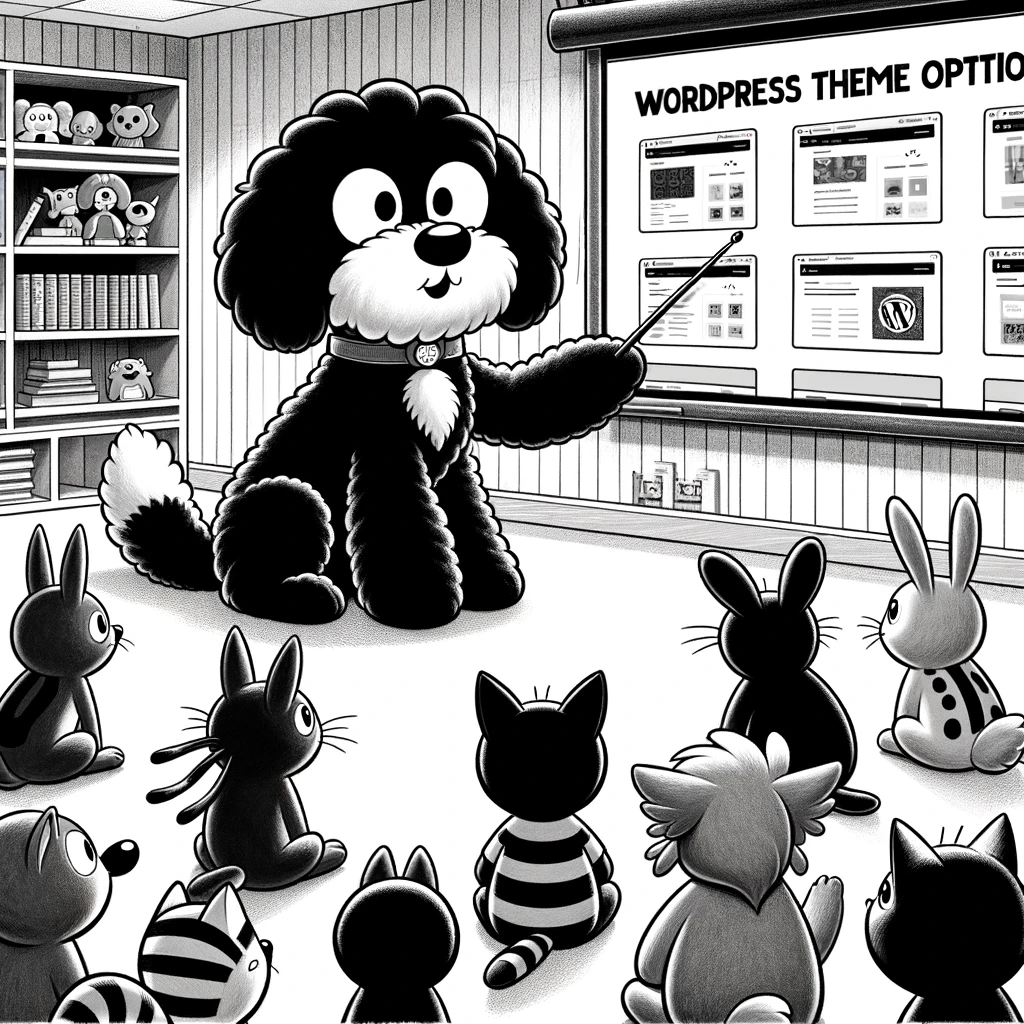
Understanding WordPress Theme Options
WordPress theme options empower users with the ability to modify a theme’s appearance, layout, and functionality without the need for editing code directly. These options are accessible through the WordPress dashboard and provide a streamlined experience for customizing various elements of a theme.
Defining Theme Components and Customization Options
Theme options typically include settings for altering the visual design such as colors, fonts, and layout size. These adjustments are made possible via a theme’s CSS, with some themes offering more advanced typography and heading styles. For further customization, some themes come with a functions.php file or the ability to add code snippets, offering a safe way to insert additional functionality.
Navigating the WordPress Customizer
The WordPress Customizer provides a live preview of changes as they are made. Users can simply navigate to Appearance > Customize in the dashboard to access a variety of settings. This live preview feature ensures that modifications to elements such as the homepage, sidebar, or text can be viewed in real-time before being applied to the live site.
Themes and Site Functionality
Themes may offer specific theme-specific options, which finely tune the functionalities related to the theme. This entails widgets management, drag-and-drop page builders, and especially WordPress theme customizer integrations. Some themes are developed with SEO considerations, providing settings to optimize content and reading experience.
Customization Without Code
For those who prefer not to engage with PHP or CSS, the WordPress customizer enables appealing visuals and functional changes with ease. Common custom options include the ability to change media elements, manage plugins, and control various design elements through a user-friendly interface.
Enhancing Visuals and Layouts
The theme options allow users to enhance the aesthetic value of their site by customizing elements like fonts, colors, and other typography components. The use of theme-specific options can significantly alter the website’s appearance and layout, catering to the owner’s design preferences.
Optimizing for Different Devices
Responsive design is crucial for a website’s usability across various devices. Theme options generally include settings for media queries and viewport sizes to ensure a mobile-friendly experience. This pertains to adjusting the size of fonts, layouts, and other elements, enabling a site to adapt to different screen dimensions seamlessly.
Managing Your WordPress Theme
Managing your WordPress theme effectively ensures that your website remains functional, aesthetically pleasing, and up to date. It involves selecting suitable themes, performing regular updates, and troubleshooting any issues that arise.
Selecting and Activating New Themes
When choosing a new theme for your WordPress site, consider the elements you need and the overall design aesthetic. To activate a new theme, navigate to the Appearance → Themes section in the WordPress dashboard. Here, you can live preview themes before making a decision. Once you find the right WordPress theme, click the Activate button to apply it to your live website.
Theme Updates and Maintenance
Regularly updating your themes ensures you have the latest features and security patches. Go to Dashboard → Updates to check for available updates. Before updating, it’s essential to backup your website, including the database and files. Consider using a child theme to avoid losing custom CSS or PHP changes in your functions.php file when the parent theme is updated.
Switching Between Themes Safely
To change a WordPress theme safely, always backup your content first. Use the Customizer for a live preview to see how the new theme affects your content. When ready, activate the new theme from the Appearance menu. Afterward, navigate through your site to ensure everything transferred properly and no elements are out of place.
Troubleshooting Theme Issues
If you experience issues with a theme, start by checking the WordPress support forums for similar problems. Common issues might include PHP errors or styling inconsistencies. To troubleshoot, you can deactivate plugins to rule out conflicts, revert to a default theme, or access your site via FTP to edit the functions.php file directly. Always ensure you have a recent backup to restore the previous state if necessary.
Extending Theme Capabilities
Enabling extended capabilities within WordPress themes involves integrating various tools and custom features, aimed at enhancing functionality and user experience. Methods include leveraging plugins, creating custom post types, and implementing advanced customization techniques.
Integrating Plugins and Widgets
WordPress themes can be expanded through the integration of plugins and widgets, enhancing both functionality and design. Plugins provide additional elements like contact forms or ecommerce systems, while widgets offer quick access to features such as recent posts or custom navigation tabs. Carefully chosen plugins can streamline adding complex features without the need for extensive coding.
Custom Post Types and Page Templates
Custom post types and page templates allow for the creation of unique content structures beyond standard posts and pages. They provide a way to present content that is tailored to specific needs, such as portfolio items, product listings, or event details. Page templates enable different layouts for content prominence, such as for landing pages or blog sections, contributing to a fresh look and improved user experience.
Advanced Customization Techniques
For those with coding knowledge, advanced customization can be achieved through direct edits to CSS, PHP, and the addition of code snippets in a theme’s functions.php file. Customizations can range from changing font styles and colors to modifying the navigation structure. Using a child theme guarantees that updates to the parent theme do not overwrite custom work, preserving a site’s unique design and functionality.
Theme Customizations for Specific Needs
Tailoring a theme to address specific requirements includes adjusting typography, adding a logo, or configuring buttons. Employing the WordPress Theme Customizer helps in visualizing these changes in real-time. For niche markets, it’s vital to manually refine each element, ensuring all customization options align with the brand and serve the target audience effectively.
Improving Site Performance and SEO
Theme customization should always consider site speed, performance, and SEO. Optimizing images, streamlining code, and utilizing plugins for caching all contribute to faster loading times. SEO enhancements involve structuring data for better indexing by search engines and integrating analytics and tracking codes, like Google Analytics or AdSense, directly within the theme to monitor and advance marketing strategies.